How to Make an Image Square Without Cropping
Published October 7, 2026 · By SevenOneLabs
Review method: export the same source in Solid and Crop modes, decode the downloads, and compare their dimensions and retained edges. The examples use 0% Outer Border and 100% Zoom. Reviewed October 8, 2026.
To make an image square without cropping, place the entire photo inside a 1:1 canvas and fill the unused space with a solid color or blurred background. The photo keeps its proportions; only the surrounding canvas changes shape. Use SquarePic's square image maker to try both backgrounds.
On this page
How to make a photo square without cropping
- Open the square photo editor and select your image. Image processing happens on your device.
- Choose Blur for a background made from your photo, Solid for a plain color, or Transparent for empty padding around a logo. Crop trims the picture instead.
- Leave Zoom at 100%. Adjust Outer Border to control padding. Set it to 0% if you want the photo's longer edge to reach the edge of the square.
- Choose 1080 × 1080 or 1200 × 1200 in Square size, or enter a custom edge from 1 to 4096 pixels and select Apply. Original size uses the photo's longer dimension, capped at 4096 pixels. The editor shows actual output dimensions and a notice when the limit applies.
- Check that faces, text, and objects are visible in the preview. Choose PNG, JPEG, or WebP, then use Download & Share to save the result.
Increasing Zoom can push the photo beyond the canvas, even in Blur, Solid or Transparent mode. Reduce Zoom if a face or an edge disappears. For avatars, leave extra room around the subject because the destination may display a circular crop.
Should you crop, add padding, or stretch?
| Method | What changes | Use it when |
|---|---|---|
| Fit with background | Adds space; keeps the full scene | Edges contain people, text, or product details |
| Centered crop | Removes edges; fills the canvas | The subject fits within the center square |
| Stretch | Changes the subject's proportions | Avoid it for photos; faces and objects become distorted |
SquarePic's Blur, Solid and Transparent modes fit the photo; Crop uses a centered crop. If you need to choose a different crop area, use the image cropper before returning to the square editor.
A worked example: 1200 × 800 to 1080 × 1080
A 1200 × 800 landscape photo has a 3:2 aspect ratio. To fit it inside a 1080 × 1080 square with no extra outer border, scale both dimensions by 1080 ÷ 1200 = 0.9. The photo becomes 1080 × 720. That leaves 360 pixels vertically, or 180 pixels of background above and below it.
A centered crop of that source keeps an 800 × 800 region, removing 200 source pixels from each side before resizing. For a portrait photo, fitting adds background to the left and right instead. Use the aspect ratio calculator to check your source dimensions.
Choose the output size and file format
Need to choose an exact edge length? The square image size guide compares pixel dimensions, crop limits and print sizes.
A larger export does not restore missing detail. Start with the original photo rather than a screenshot or a previously compressed copy. If enlargement is necessary, the non-AI image upscaler offers 2x, 3x, and 4x scaling with optional sharpening.
- Choose JPEG for photographs when a smaller file is useful. Repeated JPEG exports can add compression artifacts.
- Choose PNG for logos, text, or lossless export. Select Transparent to preserve empty padding and transparency in your source image. The checkerboard marks empty space and does not appear in the download. PNG alone does not remove a solid background already in the source.
- Choose WebP for a smaller web image when your destination supports it. If an upload has a file-size limit, use the image compressor after framing the photo.
Will Instagram still crop the result?
Your exported file remains square, but feed views, grid previews, and circular profile pictures can display it differently. Inspect the destination's preview before publishing. For vertical content, use the Reels and Stories dimensions guide; a 9:16 Story needs a different canvas from a 1:1 post.
This guide describes SquarePic's fit and centered-crop controls. The dimension examples are calculated from the stated source and output sizes, rather than platform display guarantees.
Make your photo squarePortrait photo

Original: 900 × 1350
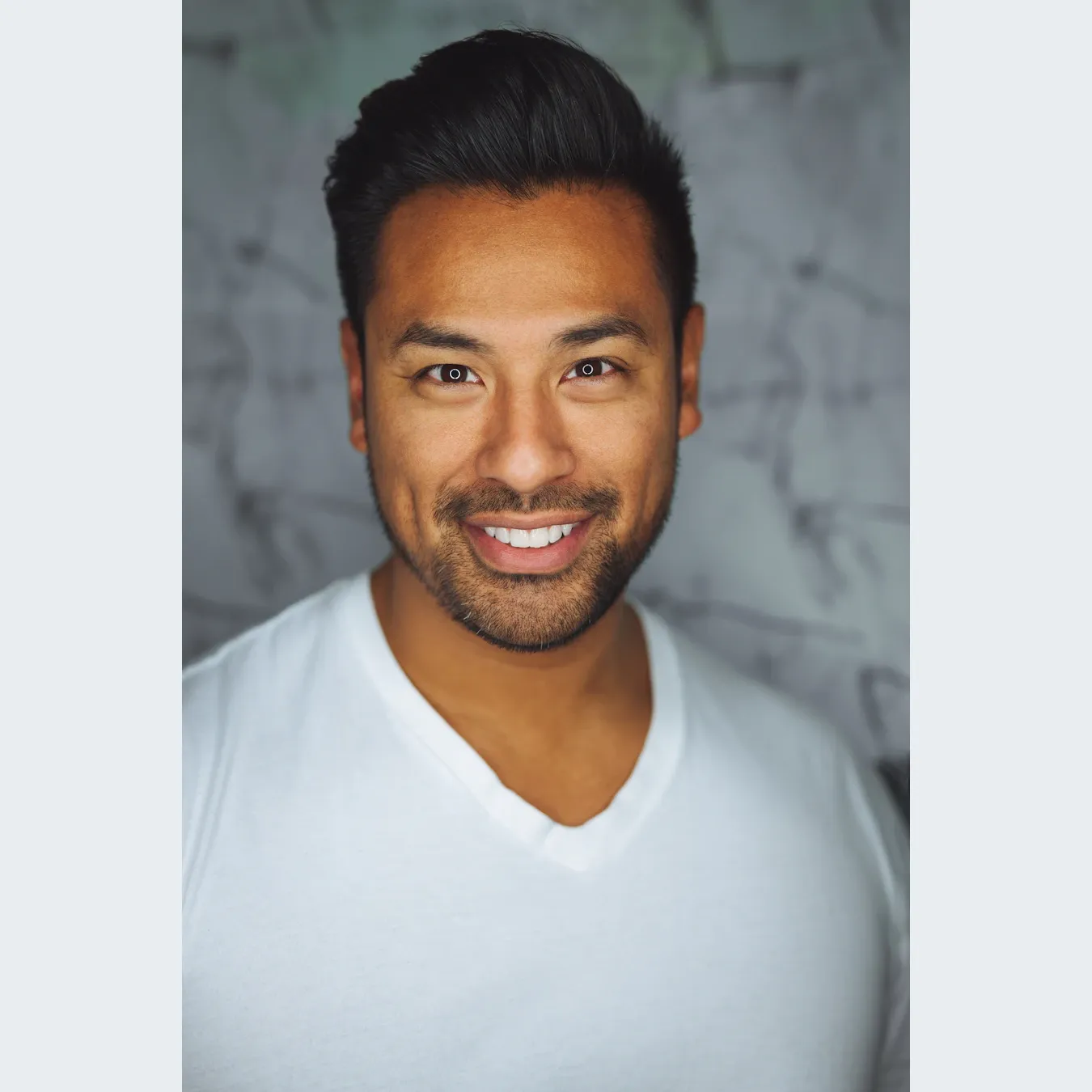
Solid fit: 1350 × 1350
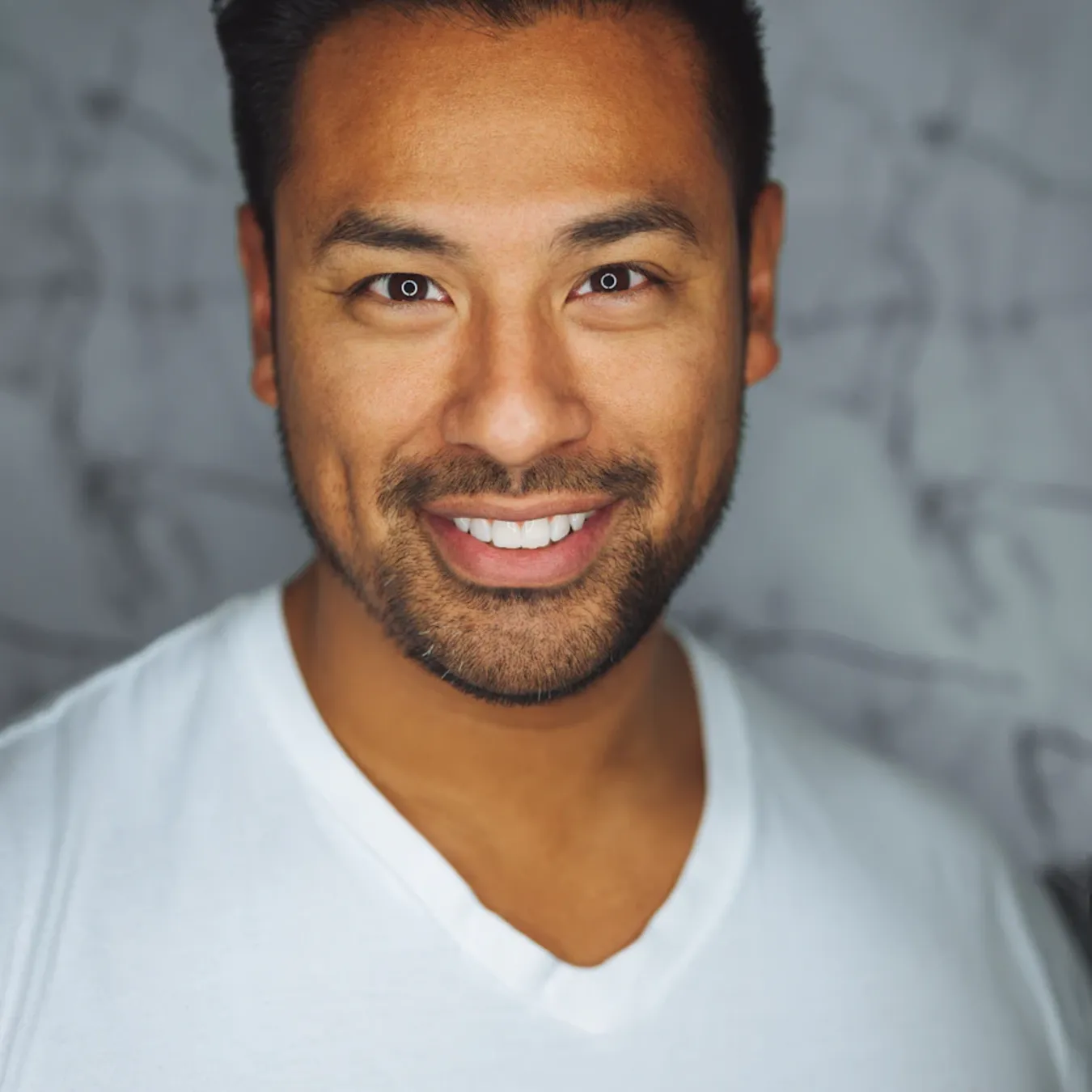
Centered crop: 1350 × 1350
Photo by Joseph Gonzalez on Unsplash.
Product photo
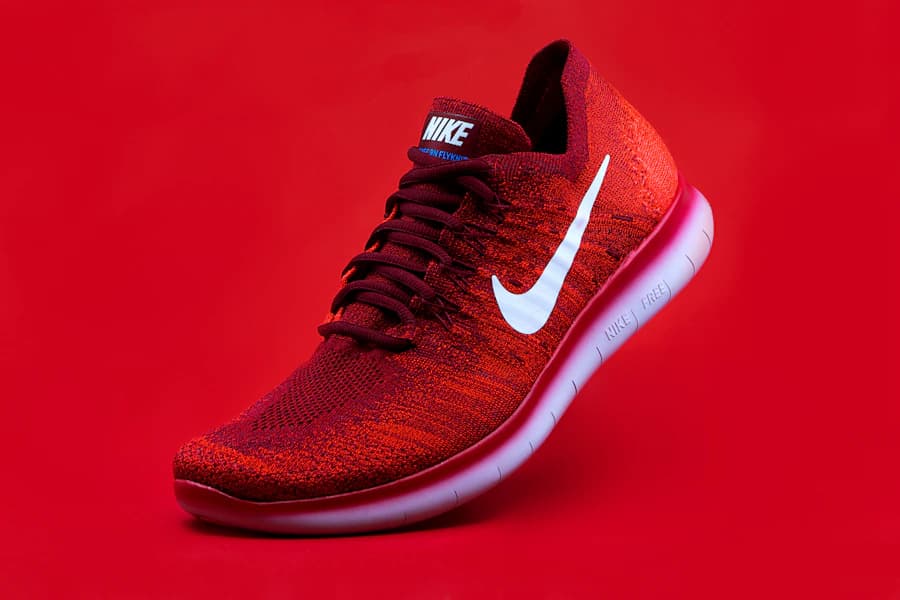
Original: 900 × 600
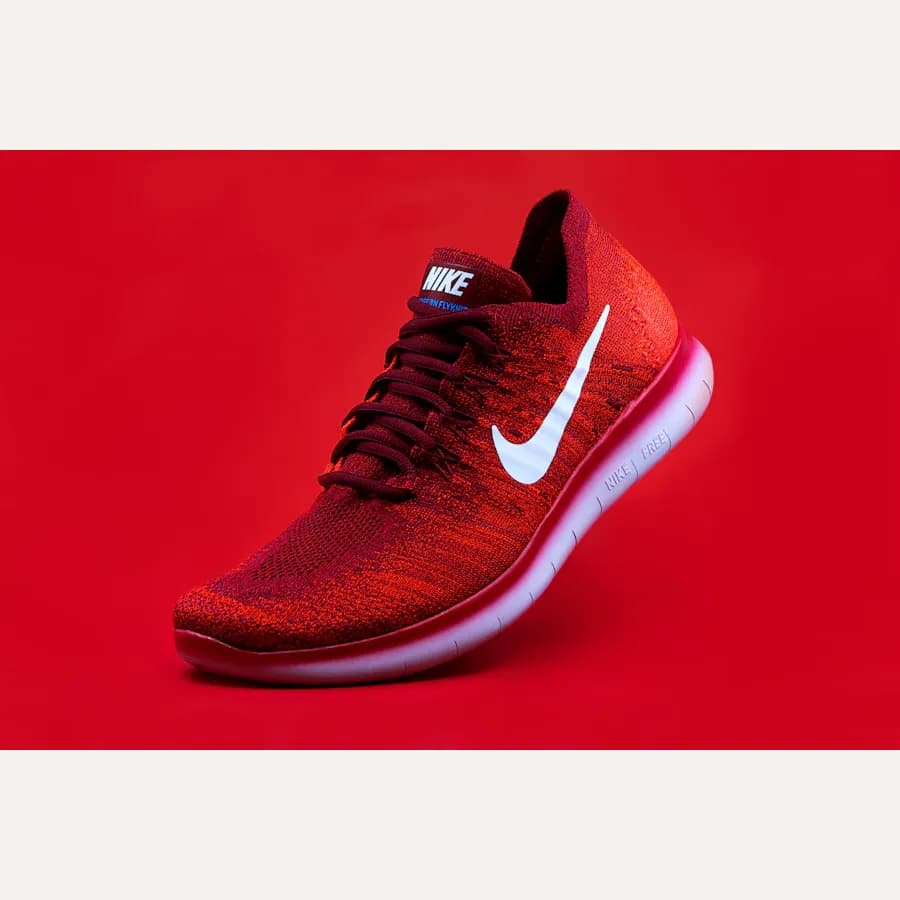
Solid fit: 900 × 900
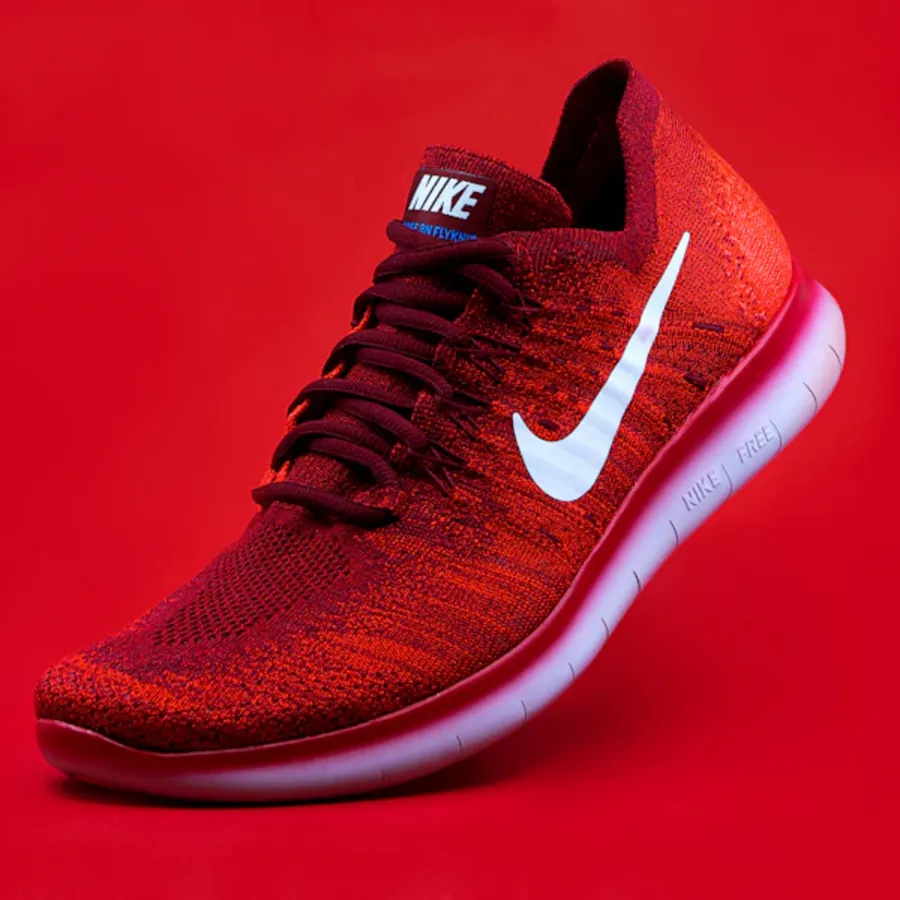
Centered crop: 900 × 900
Photo by Ryan Waring on Unsplash.